

Previous Post
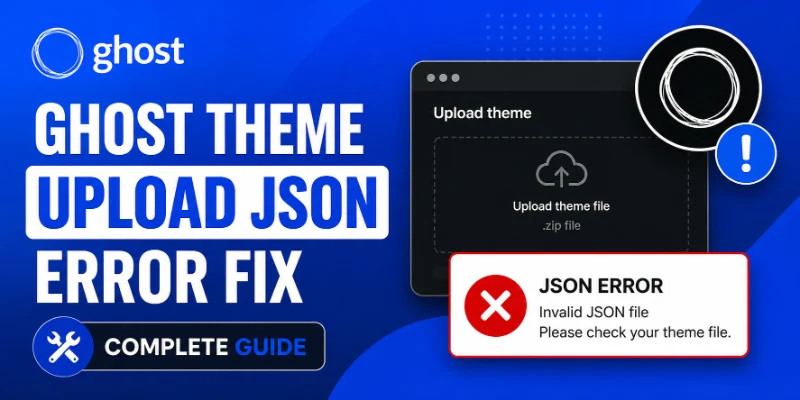
You download a Ghost theme, head to Ghost Admin, click Upload a theme, and immediately see a JSON error. It is one of the most confusing moments for new Ghost users because the error message rarely tells you exactly what went wrong. This guide breaks down every root cause and gives you a working fix for each one.
What Does the Ghost Theme Upload JSON Error Actually Mean?
Ghost validates every uploaded theme before activating it. During that validation, Ghost Admin communicates with your Ghost instance via its API, which returns JSON responses. When something goes wrong (on the server side, inside the zip file, or with the package.json inside the theme), the API returns an error object. Ghost Admin shows this as a "JSON error" or sometimes a raw JSON string in the upload modal.
The error is almost never caused by your browser. It is caused by one of these four things:
1. A broken or missing package.json inside the theme zip 2. A corrupted or incorrectly structured zip file 3. A mismatch between the Ghost version the theme requires and the version you are running 4. A server-side configuration issue on your Ghost install
Fix 1: Check and Repair the Theme's package.json
Every valid Ghost theme must include a package.json file at the root of the zip, not inside a subfolder. This file tells Ghost the theme name, version, and Ghost engine compatibility.
Open the zip file and look for package.json. A valid minimal version looks like this:
{
  "name": "your-theme-name",
  "description": "A Ghost theme",
  "version": "1.0.0",
  "engines": {
    "ghost": ">=5.0.0"
  },
  "keywords": ["ghost-theme"]
}
Common problems to fix:
- File is missing entirely: create it and place it at the zip root
- File has a trailing comma: JSON does not allow trailing commas; remove them
namefield contains spaces or uppercase letters: use lowercase with hyphens only (e.g.,my-theme)engines.ghostvalue is incompatible: update it to match your Ghost version (check Settings → About in Ghost Admin)
After fixing package.json, re-zip the theme folder and try uploading again.
Fix 2: Re-zip the Theme Correctly
A very common cause of upload JSON errors is a bad zip structure. Many users zip a folder and end up with an extra nesting level inside the archive.
Wrong structure (causes errors):
my-theme.zip
  └── my-theme/         ← extra folder level
        ├── package.json
        ├── index.hbs
        └── assets/
Correct structure:
my-theme.zip
  ├── package.json
  ├── index.hbs
  └── assets/
On Mac: open the theme folder, select all files inside it, right-click → Compress. Do not zip the folder itself.
On Windows: open the theme folder, select all files, right-click → Send to → Compressed (zipped) folder.
On Linux/Mac terminal:
cd my-theme
zip -r ../my-theme.zip .
The . is important, it zips the contents, not the folder.
Fix 3: Check Ghost Version Compatibility
Themes built for Ghost 4.x may fail on Ghost 5.x and vice versa. When the package.json declares an incompatible engine version, Ghost rejects the upload and returns a JSON error.
- Check your Ghost version:
- Ghost Admin → Settings → About (scroll to the bottom)
Then check the theme's package.json for the engines.ghost field. If your Ghost version falls outside the range, you have two options:
1. Update Ghost to a version the theme supports 2. Edit package.json and change the engines.ghost range to include your version: for most themes this is safe as long as the theme uses standard Handlebars templates
Fix 4: Ghost Theme GScan Validation Errors
Ghost runs every uploaded theme through GScan, its built-in theme validator. If GScan finds critical errors, the upload fails with a JSON-formatted error response.
Test your theme against GScan before uploading:
1. Go to gscan.ghost.org 2. Upload your theme zip 3. Review the list of errors (red) and warnings (yellow) 4. Fix all errors: warnings can be ignored for basic functionality
- Common GScan errors that block upload:
- Missing required template files (
index.hbs,post.hbs) - Using deprecated Ghost helpers without fallbacks
- Incorrect
{{asset}}helper usage
Fix 5: Server-Side Causes (Self-Hosted Ghost)
If you run Ghost on your own server, a few server-level issues can cause the JSON error:
File size limit too low. Nginx or Apache may reject the upload if the zip exceeds the configured body size limit.
For Nginx, edit your site config:
client_max_body_size 50M;Reload Nginx:
sudo nginx -s reloadFor Apache, add to .htaccess or your virtual host:
LimitRequestBody 52428800Ghost process memory. If Ghost is running with very limited memory, the upload parsing can fail. Restart Ghost and try again:
ghost restartGhost config file permissions. Ensure the content/themes directory is writable by the Ghost process user.
Fix 6: Ghost(Pro) Specific: File Limit
Ghost(Pro) limits theme zip file size to 5MB. If your theme exceeds this, the upload will fail. Reduce the zip size by:
- Removing unused fonts from the
assets/fonts/folder - Compressing large demo images used in the theme
- Running
npm run build(if the theme uses a build step) to generate minified assets and excludenode_modulesfrom the zip
Verify you are not accidentally zipping node_modules: that folder alone can add hundreds of MB.
Quick Diagnostic Checklist
Before trying anything else, run through this list:
- [ ]
package.jsonexists at zip root with valid JSON - [ ] Theme folder is not double-nested inside the zip
- [ ]
engines.ghostversion matches your Ghost install - [ ] GScan shows no critical errors
- [ ] Zip file is under 5MB (Ghost Pro) or within your server's body size limit
- [ ]
content/themesdirectory is writable
Most Ghost theme upload JSON errors are solved by fixing the zip structure or package.json. Start there and you will resolve 90% of cases in under five minutes.