

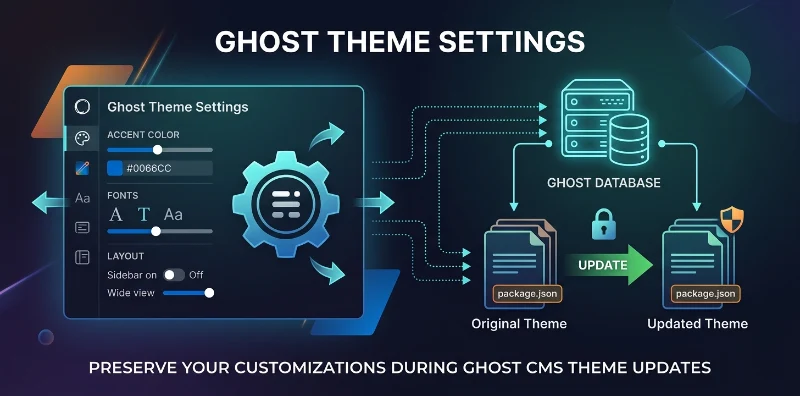
Have you ever spent hours customizing your Ghost theme's design settings—perfecting colors, fonts, and layout—only to have everything vanish after a theme update? You're not alone. This frustrating experience happens to countless Ghost users, but it's completely preventable.
In this comprehensive guide, we'll explore why Ghost theme settings get reset and provide multiple proven methods to preserve your customizations during updates. Whether you're a theme developer or a Ghost site owner, you'll learn advanced techniques that go beyond basic file naming conventions.
Why Ghost Theme Settings Get Lost: The Technical Reality
The Root Cause: Theme Identity Management
Ghost CMS identifies themes by their package.json name field and archive filename. When you upload a theme with a different name—even a slight variation—Ghost treats it as a completely new theme, not an update.
// package.json - The heart of theme identity
{
  "name": "my-theme", // This MUST stay consistent
  "version": "1.0.0",
  "config": {
    "custom": {
      "navigation_bg_color": "#ffffff",
      "accent_color": "#0066cc"
    }
  }
}
How Ghost Stores Theme Settings
Ghost maintains theme settings in its database, keyed by the theme name. When a "new" theme is activated, Ghost:
- Reads default settings from the new theme's
package.json - Creates a new settings record in the database
- Discards the old theme's custom settings
This is why maintaining consistent theme naming is crucial for preserving your customizations.
Method 1: The Professional Approach - Manual Update Protocol
Step 1: Always Backup First
Before any theme update, create a complete backup of your custom settings:
# Ghost CLI method to export settings
ghost config get paths.content
# Navigate to your Ghost installation and backup the database
Step 2: Maintain Consistent Naming
# CORRECT: Keep the same name
my-theme-v1.0.0.zip → my-theme-v1.0.1.zip

# INCORRECT: Name changes trigger settings reset
my-theme-v1.0.0.zip → my-theme-updated.zip
Step 3: Update Protocol
- Extract the current theme from Ghost Admin
- Make your changes locally
- Verify package.json name remains unchanged
- Zip with the same filename
- Upload to Ghost Admin
- Confirm the "Overwrite" prompt (not "Activate")
Method 2: The Developer's Choice - GitHub Deployment
Setting Up Automated Deployment
GitHub Actions provide the most reliable method for theme updates while preserving settings. Here's a complete workflow:
# .github/workflows/deploy-theme.yml
name: Deploy Ghost Theme

on:
  push:
    branches: [main]

jobs:
  deploy:
    runs-on: ubuntu-latest
    steps:
      - uses: actions/checkout@v4

      - name: Deploy to Ghost
        uses: TryGhost/action-deploy-theme@v1
        with:
          api-url: ${{ secrets.GHOST_API_URL }}
          api-key: ${{ secrets.GHOST_ADMIN_API_KEY }}
          theme-name: "my-theme" # Consistent theme name
Benefits of GitHub Deployment
✅ Zero file naming errors - Consistent theme name maintained
✅ Version control - Track all theme changes
✅ Automated backups - Every change saved in Git history
✅ Rollback capability - Revert to any previous version
✅ Collaboration - Multiple developers can work safely
Method 3: The Safety Net - Settings Export/Import
Export Your Current Settings
Before any theme update, export your custom settings:
// In Ghost Admin browser console
// Access: Settings → Design → Open browser console
localStorage.getItem('ghost:config');
Create a Settings Backup Script
// save-theme-settings.js
const currentSettings = {
  navigation_bg_color: '#ffffff',
  accent_color: '#0066cc',
  font_family: 'Inter',
  header_layout: 'centered'
};

console.log(JSON.stringify(currentSettings, null, 2));
// Save this output to a backup file
Restore Settings When Needed
If settings do get lost, you can restore them manually or use Ghost's API:
# Using Ghost Admin API
curl -X POST "https://your-site.com/ghost/api/v3/admin/themes/" \
  -H "Authorization: Ghost $API_KEY" \
  -H "Content-Type: application/json" \
  -d '{"theme":"my-theme","config":YOUR_SETTINGS_JSON}'
Advanced Troubleshooting: When Things Go Wrong
Scenario 1: "Activate" Instead of "Overwrite"
If you see the Activate Theme prompt instead of Overwrite Theme, Ghost recognizes this as a new theme.
Immediate Fix:
- Cancel the upload
- Check your zip filename and package.json name
- Ensure they match exactly
- Re-upload with consistent naming
Scenario 2: Settings Already Lost
If you accidentally activated a renamed theme:
Recovery Process:
- Re-activate your original theme in Ghost Admin → Settings → Design
- Your settings will return (they're still in the database)
- Upload the updated theme with consistent naming
- Choose "Overwrite" to preserve settings
Scenario 3: Version Conflicts
When working with theme versions:
// Good practice - update version, keep name
{
  "name": "my-theme", // Always the same
  "version": "1.0.1", // Update version
  "author": "Your Name"
}
Best Practices for Theme Developers
1. Document Your Settings
Create a theme-settings.md file in your theme:
# My Theme Settings Guide

## Default Configuration
- Navigation Background: #ffffff
- Accent Color: #0066cc
- Font Family: Inter
- Header Layout: Centered

## Customization Notes
- Colors use CSS variables for easy theming
- Fonts are self-hosted for consistency
- Layout is responsive by default
2. Use CSS Variables
Make settings more maintainable with CSS variables:
:root {
  --navigation-bg: #ffffff;
  --accent-color: #0066cc;
  --primary-font: 'Inter', sans-serif;
}

/* Usage */
.navigation {
  background-color: var(--navigation-bg);
}

.button {
  background-color: var(--accent-color);
  font-family: var(--primary-font);
}
3. Implement Fallback Values
Always provide fallback values in your Handlebars templates:
{{#if @custom.accent_color}}
  <style>
    .accent { color: {{@custom.accent_color}}; }
  </style>
{{else}}
  <style>
    .accent { color: #0066cc; } /* Fallback */
  </style>
{{/if}}
Real-World Example: Complete Update Workflow
Before Update
# 1. Check current theme info
ghost ls

# 2. Export current theme
ghost export themes

# 3. Download and extract
unzip my-theme-current.zip -d theme-backup/
Making Changes
# 4. Edit theme files
cd theme-backup/
# Make your customizations...

# 5. Verify package.json consistency
cat package.json | grep '"name"'
# Output should be: "name": "my-theme"

# 6. Package with same name
zip -r my-theme.zip .
After Update
# 7. Upload to Ghost Admin
# Choose "Overwrite" when prompted

# 8. Verify settings preserved
# Check Settings → Design → confirm customizations remain
Performance Considerations
Database Optimization
Frequent theme updates can impact database performance:
Recommendations:
- Batch updates instead of frequent small changes
- Clean up unused theme versions
- Monitor database size regularly
Asset Optimization
When updating themes, optimize assets:
# Compress images before upload
find assets/images/ -name "*.jpg" -exec jpegoptim {} \;
find assets/images/ -name "*.png" -exec optipng {} \;

# Minify CSS/JS
npm run build  # If your theme has a build process
Version Control Integration
Git Workflow for Themes
# Initialize theme repository
git init
echo "node_modules/" > .gitignore
echo "*.zip" >> .gitignore

# First commit
git add .
git commit -m "Initial theme setup"

# Branch for development
git checkout -b development
# Make changes...
git commit -m "Update theme styling"

# Merge to main for production
git checkout main
git merge development
git tag v1.0.1
Semantic Versioning
Use semantic versioning for theme updates:
- Major (1.0.0): Breaking changes, settings structure changed
- Minor (1.1.0): New features, backward compatible
- Patch (1.0.1): Bug fixes, small improvements
Common Pitfalls and Solutions
Pitfall 1: Case Sensitivity
# Different (Linux systems are case-sensitive)
My-Theme.zip ≠ my-theme.zip

# Solution: Always use lowercase
my-theme.zip = my-theme.zip
Pitfall 2: Special Characters
# Problematic
my theme v1.0.zip  # Space character
my-theme-v1.0.zip  # Clean
Pitfall 3: Hidden Files
# Check for hidden files before zipping
ls -la

# Exclude unwanted files
zip -r my-theme.zip . -x "*.DS_Store" "*.git*"
Conclusion: Mastering Ghost Theme Updates
Preserving Ghost theme settings during updates isn't complicated—it just requires understanding how Ghost manages theme identity and following consistent procedures.
Key Takeaways:
- Consistent naming is everything - Same filename and package.json name
- GitHub deployment is the gold standard - Automated, version-controlled, safe
- Always backup before updating - Prevention is better than cure
- Test in staging - Never update production without testing
- Document your process - Create repeatable workflows
By following these advanced techniques, you'll never lose your Ghost theme customizations again. Your design settings will remain intact through countless updates, allowing you to focus on creating great content rather than troubleshooting theme issues.