
Previous Post
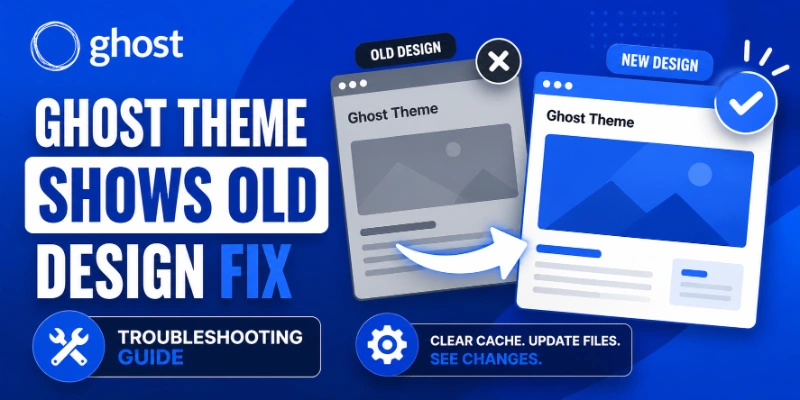
You upload your Ghost theme, see it appear in the theme list, click Activate, and… nothing changes. The site still shows Casper or the old theme. This is one of the most frustrating Ghost theme issues because the upload appeared to succeed. Here is why it happens and how to fix it every time.
Why Ghost Theme Activation Fails
Ghost theme activation can silently fail or appear to do nothing for several distinct reasons. Unlike an upload error that shows a message, activation failures often leave no visible feedback. The three most common causes are:
1. A browser or CDN cache serving the old stylesheet 2. GScan validation errors that prevent Ghost from switching themes 3. File permission problems on self-hosted installs 4. The theme was uploaded but Ghost's active theme pointer was not updated in the database
Work through these fixes in order, the first one solves the problem for most users.
Fix 1: Hard Refresh and Clear Browser Cache
Before anything else, do a hard refresh. Browser caches aggressively store CSS and JS files.
- Chrome / Edge:
Ctrl + Shift + R(Windows) orCmd + Shift + R(Mac) - Firefox:
Ctrl + F5(Windows) orCmd + Shift + R(Mac) - Safari: Hold
Shiftand click Reload
If that does not help, open an incognito/private window and visit your site. If the new theme appears there, the issue is your browser cache. Clear it fully: Chrome → Settings → Privacy → Clear browsing data → Cached images and files.
If you use Cloudflare or another CDN in front of your Ghost site, purge the CDN cache too. Cloudflare → Caching → Purge Everything.
Fix 2: Confirm the Theme Is Actually Set as Active in Ghost Admin
It sounds obvious, but confirm the active theme state in Ghost Admin:
1. Go to Ghost Admin → Settings → Design → Change theme 2. Look for the theme in the list: it should have an Active badge 3. If it shows an Activate button instead, click it
If you click Activate and the badge does not appear, Ghost may be silently rejecting the activation due to a validation error. Scroll down on the theme card: Ghost sometimes shows warning text beneath the theme name when it activates with issues.
Fix 3: Run GScan and Fix Critical Theme Errors
Ghost will activate a theme that has warnings, but it will block or partially activate themes with critical errors. A partially activated theme can look like the old theme is still showing.
Test your theme zip at gscan.ghost.org. Fix every item marked as an Error (red). Warnings (yellow) will not block activation.
The most common critical errors that block full activation:
- Missing
index.hbstemplate: required for the homepage - Missing
post.hbstemplate: required for individual posts - Invalid
{{#foreach}}or{{#get}}helper usage - Using removed helpers from older Ghost versions
After fixing errors, re-upload the corrected zip and activate again.
Fix 4: Check File Permissions (Self-Hosted Ghost)
On self-hosted Ghost, the content/themes/ directory must be writable by the user that runs Ghost (typically ghost or www-data). If permissions are wrong, Ghost may register the upload but fail to complete the activation write.
Check and fix permissions:
# Check the owner
ls -la /var/www/your-ghost-site/content/themes/
Fix ownership (replace 'ghost' with your Ghost process user)
sudo chown -R ghost:ghost /var/www/your-ghost-site/content/themes/
Fix permissions
sudo chmod -R 755 /var/www/your-ghost-site/content/themes/
After fixing permissions, restart Ghost and try activating again:
ghost restartFix 5: Restart Ghost (Clears In-Memory Theme Cache)
Ghost caches theme files in memory when the process starts. Even after you upload a new theme, if Ghost holds a cached reference to the old one, activation may not fully take effect.
Restart Ghost to clear the in-memory cache:
# Using Ghost CLI (self-hosted)
ghost restart
Or restart the system service
sudo systemctl restart ghost_your-domain-com
For Ghost(Pro), you can trigger a restart by making a dummy change in Settings → Design (like changing accent color), saving it, then reverting. This forces Ghost to re-read the active theme from disk.
Fix 6: Delete and Re-upload the Theme
If activation still fails after all the above, delete the theme entirely and re-upload it fresh:
1. Ghost Admin → Settings → Design → Change theme 2. Hover over the theme → click the Delete icon (trash can) 3. Confirm deletion 4. Upload the theme zip again 5. Activate immediately after upload
This forces Ghost to write a clean copy of all theme files and update the active theme record in the database from scratch.
Fix 7: Check for Theme Name Conflicts
If a theme with the same directory name already exists in content/themes/, a new upload may overwrite some files but not others, leaving a mixed state. Rename your theme before re-uploading: open package.json inside the zip, change the name field to something unique, re-zip, and upload under the new name.
Fix 8: Ghost Routes Configuration Conflict
If you have a custom routes.yaml in place, it can override which template Ghost uses to render pages, making it look like the theme did not activate because the layout is different from what you expected. Check this file:
cat /var/www/your-ghost-site/content/settings/routes.yamlA default routes.yaml should contain only:
routes:
collections:
  /:
    permalink: /{slug}/
    template: index
taxonomies:
  tag: /tag/{slug}/
  author: /author/{slug}/
If it has custom template assignments pointing to templates your new theme does not include, those pages will fall back to default or look broken.
Quick Activation Checklist
- Hard refreshed browser and tested in incognito
- CDN cache purged if applicable
- Ghost Admin shows the correct theme as Active
- GScan shows no critical errors
content/themes/has correct ownership and permissions- Ghost process restarted after upload
- No theme name conflict with an existing directory
Work through this list top to bottom and you will resolve Ghost theme activation failures in most cases within a few minutes.