



Previous Post
Table of Contents
Ghost CMS is one of the fastest publishing platforms available today. Its clean architecture, excellent performance, and intuitive editor make it an excellent choice for bloggers, creators, SaaS companies, documentation websites, and online magazines. However, one limitation quickly becomes apparent as your website grows: the default navigation system is intentionally simple.
If your website contains dozens of categories, products, documentation pages, or resources, a traditional navigation bar can become difficult to manage. Visitors often struggle to discover important content because everything is hidden behind a flat list of links.
This is where a mega menu becomes valuable.
Instead of displaying a single vertical dropdown, a mega menu presents multiple columns of organized links, featured content, icons, descriptions, and call-to-action blocks. Large websites use mega menus to improve navigation, increase page discovery, and reduce the number of clicks required to reach important content.
This tutorial explains how to integrate the Themeix Dynamic Dropdown & Mega Menu into virtually any Ghost theme. Rather than modifying Ghost core, the library enhances Ghost's existing navigation and transforms it into responsive dropdowns and configurable mega menus.
Introducing Themeix Dynamic Dropdown & Mega Menu
Themeix Dynamic Dropdown & Mega Menu is an open-source JavaScript solution designed specifically for Ghost CMS themes. Instead of replacing Ghost's navigation system, it enhances the existing menu and generates dropdowns and mega menus from configuration.
Some key features include:
- Standard dropdown menus
- Full-width mega menus
- Responsive design
- Configurable menu behavior
- Custom icons and labels
- Flexible JavaScript configuration
- Works with most Ghost themes
Prerequisites
Before continuing, make sure you have:
- Ghost 5 or newer
- Access to your Ghost theme files
- Basic HTML knowledge
- Basic CSS knowledge
- Basic JavaScript knowledge
How the Library Works
The library follows a straightforward workflow.
- Ghost provides the navigation markup.
- Themeix Menu reads the navigation.
- Your configuration determines which items become dropdowns or mega menus.
- JavaScript injects the required HTML structure.
- CSS styles the final navigation.
Because the configuration is separate from your theme, future maintenance becomes much easier.
Installing Themeix Dynamic Dropdown & Mega Menu in Ghost
Clone or download the repository.
git clone https://github.com/themeix/ghost-dynamic-dropdown-mega-menu.git
The project contains the following important files:
themeix-menu.js
themeix-menu.css
README.md
examples/
    accessibility-config.js
    advanced-patterns.js
    animation-config.js
    basic-config.js
    icon-config.js
    json-config.json
    mega-menu-config.js
mobile-config.js themeix-menu.jscontains the menu engine.themeix-menu.cssprovides the default styling.examples/**.jsdemonstrates how to configure dropdown and mega menus.
Copy the Assets
Copy the CSS and JavaScript files into your Ghost theme.
content/
└── themes/
    └── your-theme/
        └── assets/
            ├── css/
            │   └── themeix-menu.css
            └── js/
                └── themeix-menu.js
Keeping the library inside your theme ensures it is deployed with every theme update.
Load the Stylesheet
Inside your theme layout (typically default.hbs), include the stylesheet.
<link rel="stylesheet" href="{{asset "css/themeix-menu.css"}}">
Load it together with your existing theme stylesheet so the menu styles are available when the page renders.
Load the JavaScript
Before the closing </body> tag add:
<script src="{{asset "js/themeix-menu.js"}}"></script>
Loading the script at the bottom of the page improves perceived performance because the HTML finishes rendering before the menu engine initializes.
Create a Configuration File
Instead of editing the library directly, create a dedicated configuration file.
window.themeixMenuConfig = {
    menus: []
};
This approach makes updating the library much easier because your project-specific settings remain separate.
Initialize the Library
After defining the configuration, initialize the menu.
document.addEventListener("DOMContentLoaded", () => {
    new ThemeixMenu(window.themeixMenuConfig);
});
Waiting for DOMContentLoaded ensures the Ghost navigation has already been rendered.
Verify the Installation
Open your website and check the browser developer console.
You should confirm:
- No JavaScript errors
- CSS loads successfully
- Navigation displays normally
- Themeix Menu initializes without warnings
If everything looks correct, you're ready to build your first dropdown.
Common Installation Mistakes
CSS doesn't load
Double-check the asset path and ensure the file exists inside your theme.
JavaScript returns 404
Verify that themeix-menu.js is located in assets/js/ and referenced with the correct {{asset}} helper.
Nothing changes
Remember that installing the library alone doesn't create a mega menu. The behavior comes from your configuration file, which we'll cover next.
Basic Structure
The project exposes a global configuration object.
window.themeixMenuConfig = {
    menus: [
        // menu definitions
    ]
};
Each entry inside the menus array describes how a specific navigation item should behave.
Matching a Navigation Item
The library identifies navigation items using a matching rule.
{
    match: {
        url: "/resources/"
    }
}
When a visitor reaches a page that contains this navigation item, the library applies the matching configuration.
Using URLs instead of fragile CSS selectors makes the configuration easier to understand and maintain.
Menu Types
The examples included with the repository demonstrate different menu types.
Typical configurations include:
- Standard dropdown
- Mega menu
- Responsive menu
Choose the menu type that best fits your navigation structure.
Menu Settings
Each menu definition contains a settings object.
Typical options include:
- Number of columns
- Width
- Alignment
- Responsive behaviour
- Animation
For example:
settings: {
    columns: 4,
    width: "960px",
    alignment: "center"
}
Increasing the number of columns makes it easier to organize documentation, categories, products, or knowledge-base links.
Grouping Related Links
Instead of placing every link into one long list, organize them into logical groups.
Example:
Resources
    Documentation
    Tutorials
    API Reference

Company
    About
    Careers
    Contact

Support
    Help Center
    Community
    Status
Visitors scan grouped content much faster than a flat dropdown.
Building a Complete Mega Menu
Unlike a traditional dropdown that displays a single vertical list of links, a mega menu gives you complete control over how navigation is organized. You can divide links into logical groups, display multiple columns, highlight featured content, and make large websites much easier to explore.
Understanding the Mega Menu Configuration
The example mega-menu-config.js demonstrates how each menu is configured independently.
A typical configuration contains:
{
    match: {
        url: "/resources/"
    },
    type: "mega",
    settings: {
        columns: 4,
        width: "960px",
        alignment: "center"
    }
}
Each property has a specific purpose.
match
The match object tells the library which Ghost navigation item should receive the mega menu.
match: {
    url: "/resources/"
}
The URL should match the navigation link configured in Ghost Admin.
type
The type property defines how the menu is rendered.
type: "mega"
Changing the type allows the same library to create different navigation experiences without changing your theme templates.
settings
The settings object controls the layout.
settings: {
    columns: 4,
    width: "960px",
    alignment: "center"
}
These options determine how much space the menu occupies and how content is arranged.
Adjusting the Width
Large websites often need a wider menu.
Example:
settings: {
    width: "1100px"
}
Smaller websites generally benefit from narrower menus that don't dominate the page.
Alignment Options
The configuration also lets you control alignment.
Common choices include:
- Left aligned
- Center aligned
- Right aligned
Choose the option that matches your header layout.
Customize the Look Without Editing the Core Library
Avoid modifying themeix-menu.js directly. Instead, customize the appearance with your own stylesheet.
For example:
.themeix-mega-menu {
    border-radius: 12px;
    box-shadow: 0 12px 32px rgba(0,0,0,.08);
}
Keeping your styles separate makes future library updates much easier.
Example Mega Menu Setup
<script>
window.themeixMenuConfig = {
  "version": 1,
  "globalSettings": {
    "animationDuration": 300,
    "mouseDelay": 150,
    "closeOnClickOutside": true,
    "closeOnEscape": true,
    "keyboardNavigation": true,

  },
  "menus": [

    {
        match: { title: "NHL" },
  type: "mega",
  settings: {
    columns: 4,
    width: "1100px",
    alignment: "center",
    animation: "fade"
  },
  groups: [
    {
      title: "Atlantic Division",
      links: [
        { title: "Springfield Thunderbirds", url: "/teams/springfield-thunderbirds/", icon: { image: "https://yourdomain.com/nhl-logo30px.webp", width: "20px", height: "20px", alt: "NHL Team" } },
        { title: "Wilkes-Barre/Scranton Penguins", url: "/teams/wilkes-barre-scranton-penguins/", icon: { image: "https://yourdomain.com/nhl-logo30px.webp", width: "20px", height: "20px", alt: "NHL Team" } }
      ]
    },

    {
      title: "Central Division",
      links: [
        { title: "Rockford IceHogs", url: "/teams/rockford-icehogs/", icon: { image: "https://yourdomain.com/nhl-logo30px.webp", width: "20px", height: "20px", alt: "NHL Team" } },
        { title: "Texas Stars", url: "/teams/texas-stars/", icon: { image: "https://yourdomain.com/nhl-logo30px.webp", width: "20px", height: "20px", alt: "NHL Team" } }
      ]
    },
    {
      title: "Pacific Division",
      links: [
     { title: "San Jose Barracuda", url: "/teams/san-jose-barracuda/",
        { title: "Tucson Roadrunners", url: "/teams/tucson-roadrunners/",
      ]
    }
]
}

  ]
};
</script>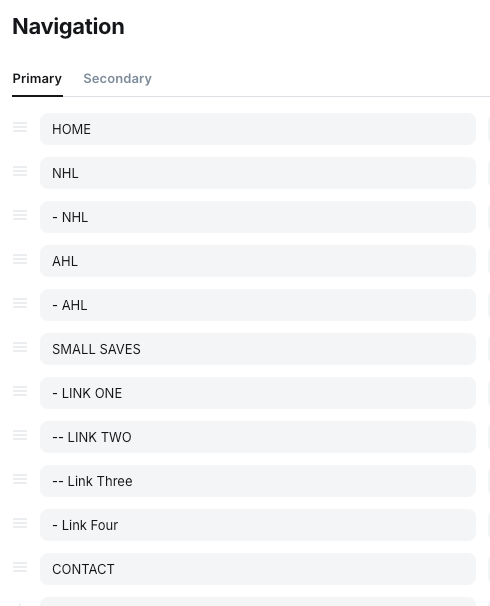
Troubleshooting Guide
The menu doesn't appear
Check the following:
- The CSS file is loaded correctly.
themeix-menu.jsis loaded without errors.- The configuration file is loaded after the library.
- Browser developer tools show no JavaScript errors.
Dropdowns don't open
Verify that:
- The navigation URL matches the
match.urlvalue in your configuration. - JavaScript initializes after
DOMContentLoaded. - Theme scripts aren't preventing event listeners from firing.
Styles look broken
Possible causes include:
- Missing stylesheet
- Incorrect asset paths
- Theme CSS overriding the library styles
- Browser cache serving old assets
Clear your browser cache after making changes.
Mega menu is misaligned
Review:
- Width settings
- Alignment configuration
- Header container width
- Parent element positioning
Different Ghost themes may require small CSS adjustments.
Mobile navigation isn't working
Test on real devices whenever possible.
Check:
- Responsive breakpoints
- Mobile menu toggle
- Touch interactions
- Viewport settings
Deployment Checklist
Before publishing your updated Ghost theme, confirm that:
- All CSS assets load correctly.
- JavaScript files load without errors.
- Navigation links point to the correct pages.
- Mega menus open correctly.
- Mobile navigation works.
- Keyboard navigation works.
- No console errors remain.
- Theme passes accessibility checks.
Frequently Asked Questions
Does this work with any Ghost theme?
Yes. The library is designed to integrate with most Ghost themes. Minor template adjustments may be required depending on how the navigation is rendered.
Does it modify Ghost core?
No. Everything is implemented within your theme.
Can I create multiple mega menus?
Yes. Configure each navigation item independently.
Does it support dropdown menus?
Yes. The library supports both traditional dropdowns and full-width mega menus.
Can I change the menu width?
Yes. Width is controlled through the configuration.
Can I customize the appearance?
Absolutely. Extend or override the provided CSS in your own stylesheet.
Does it work on mobile?
Yes. The library is designed to be responsive.
Can I use Font Awesome icons?
Yes, provided your theme loads the icon library.
Will it affect Ghost updates?
No. Because the library lives inside your theme, Ghost core updates are unaffected.
Is the library open source?
Yes. You can modify and extend it to suit your project.
By extending Ghost's default navigation with the Themeix Dynamic Dropdown & Mega Menu library, you can build responsive dropdowns and powerful mega menus without modifying Ghost core.
Because the library separates configuration from presentation, it remains easy to maintain, customize, and reuse across multiple Ghost themes.
Whether you're building a documentation portal, SaaS website, digital magazine, marketplace, or company website, an organized mega menu helps visitors discover more content while improving the overall browsing experience.
Thank you for following this guide. If you have ideas, improvements, or feature requests, consider contributing to the project or sharing your implementation with the Ghost community.